Automate your post-purchase journey! With our new Mailchimp Integration, you can now sync real-time order data to your Mailchimp account. This allows you to create automated email campaigns that remind customers to re-order, share tracking updates, and build lasting relationships that drive revenue.
How to Set Up the Integration
Follow these steps to connect your accounts and start syncing data.
Step 1: API Key
- To locate the API Keys, log into your Mailchimp account
- Navigate to Account Settings > Extras > API Keys
- Under your API keys, tap on Create a Key Button and copy the API key
- Set the status as Enable
- Paste that into the API Keys field in your Reorder Master workflow.

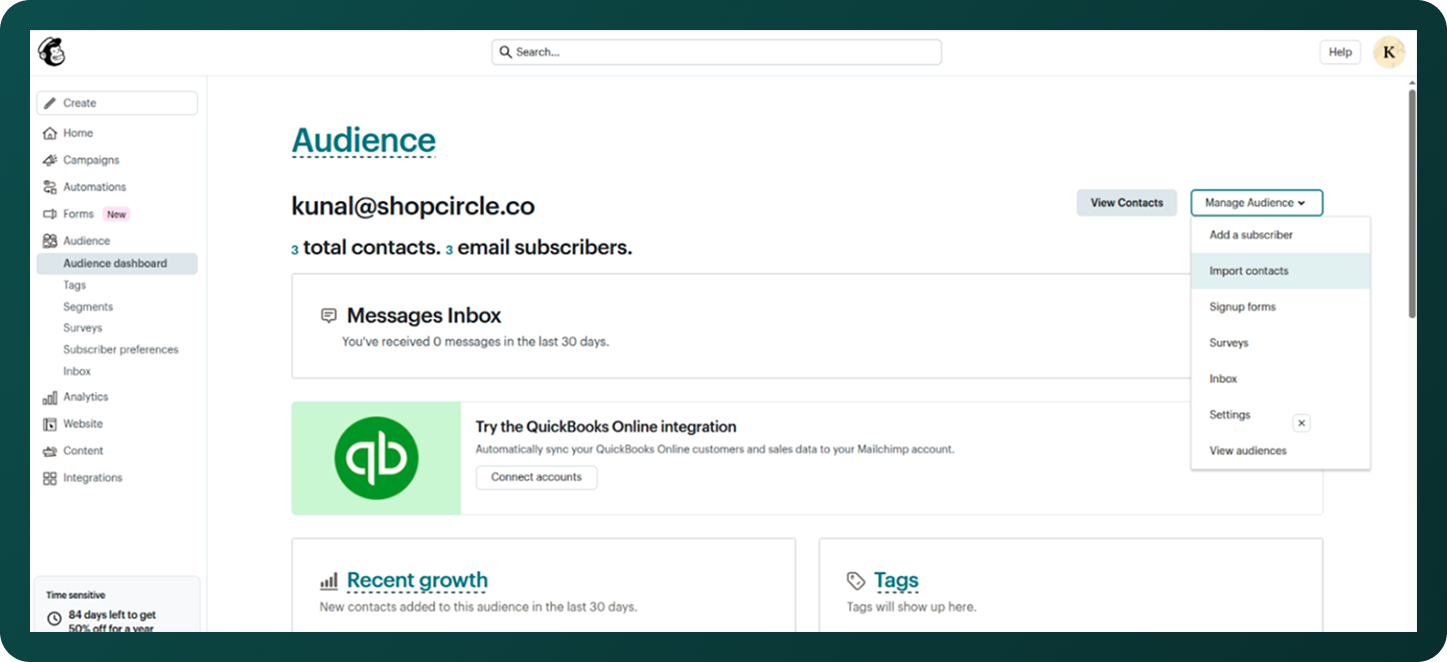
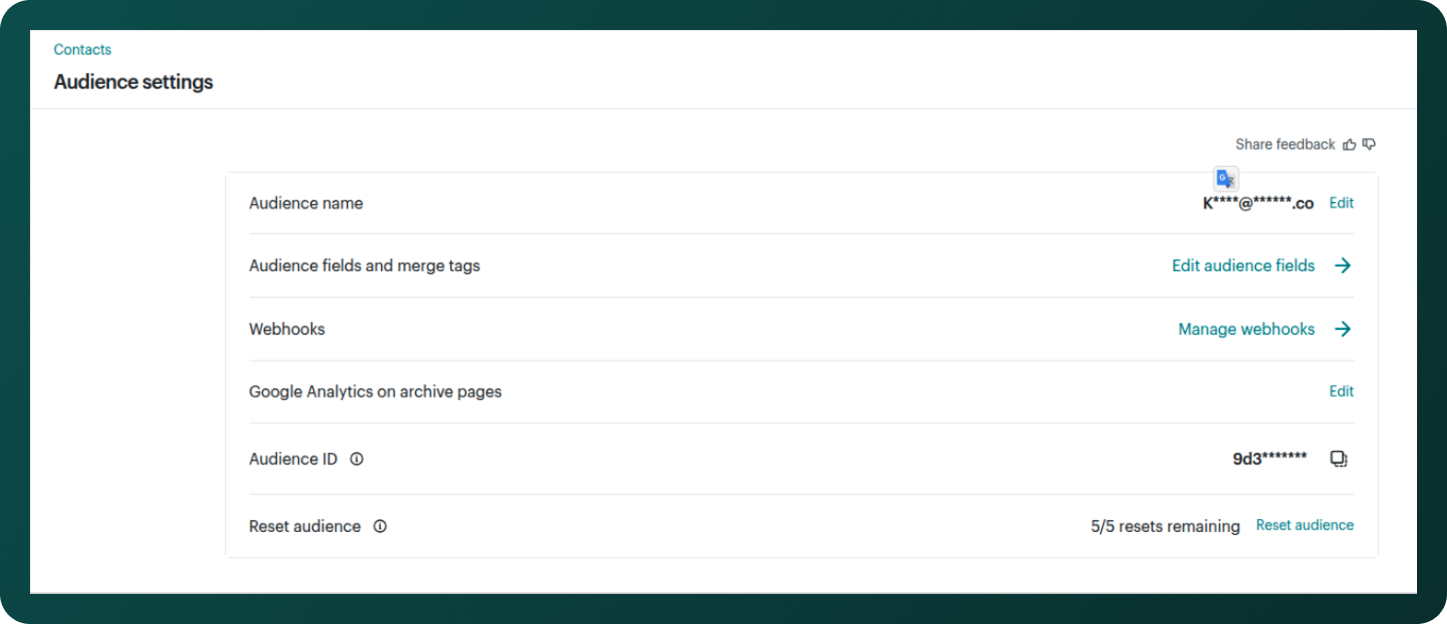
Step 2: Collect Audiences ID
- To locate the Audience ID, log into your Mailchimp account
- Navigate to Audience > All contacts > Audience name and defaults
- Go to Audience and select your audience
Step 3: Connect Order Status Tracker to Mailchimp
- Head over to the Order Status Tracker app > Integrations
- Enable Mailchimp integration
- Add the above details to the Audience ID
- Add the Mailchimp API Key value
- Press Save
Step 4: Monitor Mailchimp sync
- Back to Mailchimp admin > Audience > All contacts > contact
- You will see a new metric called Order Status Tracker; you can check the details from the example event we sent you
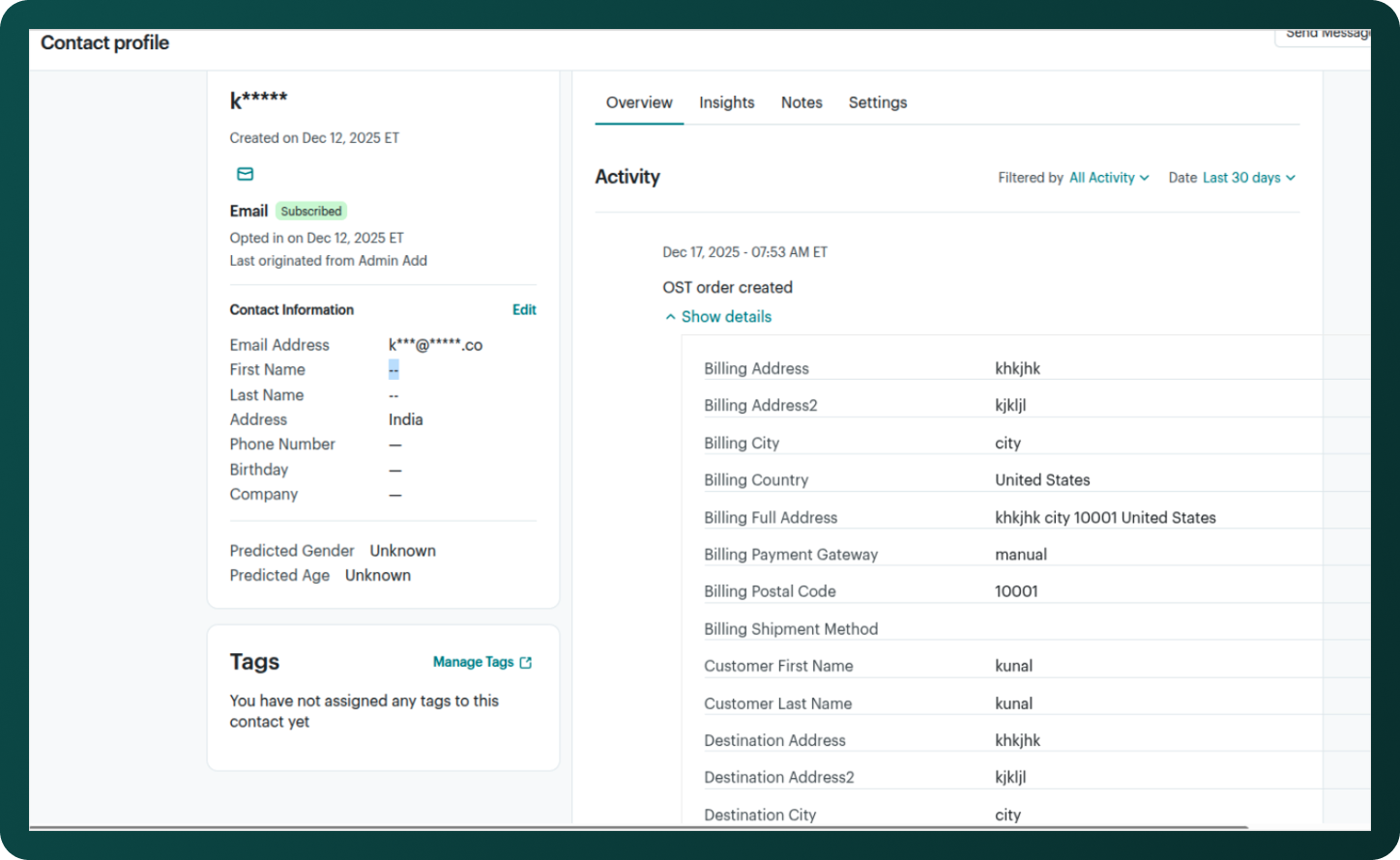
Success! Your Order Status Tracker and Mailchimp accounts are now connected. You can now use these data points to trigger automated flows and segment your audience based on their order journey.
Was this article helpful?
That’s Great!
Thank you for your feedback
Sorry! We couldn't be helpful
Thank you for your feedback
Feedback sent
We appreciate your effort and will try to fix the article