Stop Guessing, Start Segmenting: Automated Customer Profiling
Capturing a customer's email is only the beginning. To truly grow your Shopify store, you need to know who your customers are—their age, their preferences, and their unique needs.
Instead of manually editing customer profiles or sorting through spreadsheets, you can use Hulk Form Builder to do the heavy lifting for you. By syncing your form fields directly with Shopify Metafields, every piece of data a customer submits is instantly injected into their Shopify profile.
Why this is a game-changer for your store:
Hyper-Personalized Marketing: Capture a "Preferred Style" via your form and automatically use that data to send targeted email campaigns through Klaviyo or Shopify Email.
Powerful Customer Segments: Create automated lists in Shopify (e.g., "Customers interested in Eco-Friendly products") based on form responses.
Zero Manual Entry: Eliminate the need for your support team to manually tag or update customer records.
In this guide, we’ll show you how to bridge the gap between your custom forms and Shopify’s database in under five minutes.
Step 1: Create the Metafield in Shopify
Before setting up the form, Shopify needs a "home" for the data.
Go to Shopify Settings > Metafields and metaobjects > Customers.
Click Add definition.
Enter a Name (e.g., "Customer Age").
Namespace and key (e.g.,
custom.customer_age) will be created. Click on it and change custom to global (e.g.,global.customer_age)Select the Type (e.g., use Integer type for customer age).
Under Options, ensure "Storefront API access" is checked
Under Customer Account API access choose Read and write
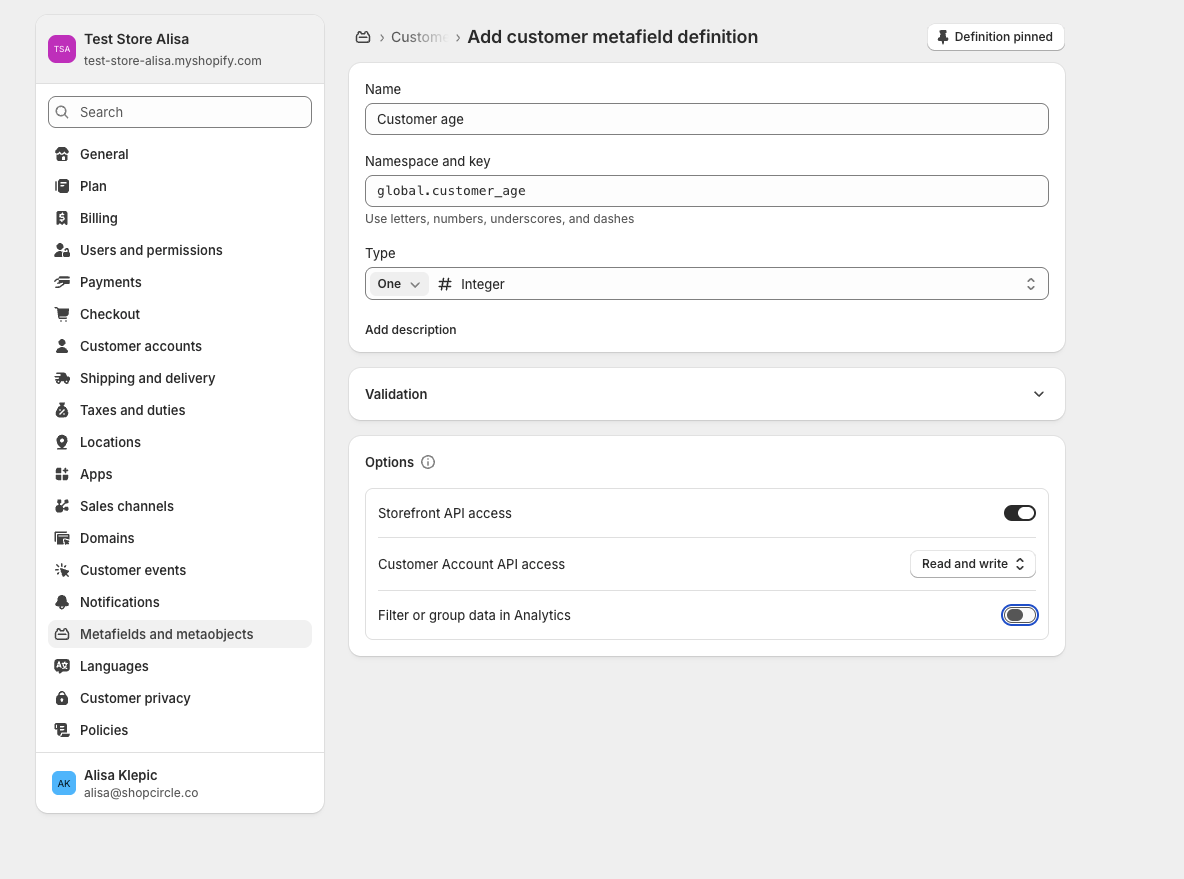
Click Save.
Step 2: Connect the Metafield to Hulk Form Builder
Now, tell the form where to send the information.
Open the Hulk Form Builder app and edit your form.
Click Add Element and choose the field type that matches your Metafield (e.g., a "Number" field for age).
Expand the field settings and scroll down to Shopify Integration.
Note: This field will be visible only once you have enabled Shopify integration for creating customers. To do so, Edit the form- go to Settings - Integration tab, then to Shopify integration and then check the checkbox next to Create Shopify customer option.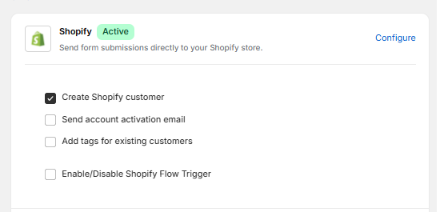
In the Metafield Key box, paste the exact key you created in Step 1 without the prefix global (e.g.,
customer_age).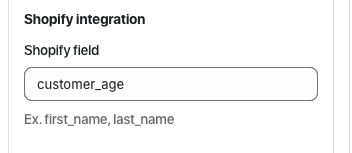
Click Save.
Step 3: Test the Integration
Go to your live store and fill out the form.
Input data into your new field (e.g., enter "28" in the Age field).
Submit the form.
Go to Shopify Admin > Customers and select the customer who just submitted the form.
Scroll to the bottom to the Metafields section. You will see the data has been automatically populated.
? How to use this data to grow your sales
Mapping forms to metafields isn't just about organization—it’s about revenue. Here are three ways to use this setup:
VIP Access: Create a "Professional Installer" or "Wholesale" form. When they submit their business ID via a metafield, you can instantly identify them and grant access to B2B-only collections.
Birthday Rewards: Collect birth dates in your form that sync to a metafield. Use an automation (like Shopify Flow) to automatically send a discount code on their special day.
Tailored Recommendations: If a customer selects "Dry Skin" in your skincare quiz form, that preference is saved to their profile. The next time you send an email, you can ensure you’re only recommending moisturizers, increasing your conversion rate.
Was this article helpful?
That’s Great!
Thank you for your feedback
Sorry! We couldn't be helpful
Thank you for your feedback
Feedback sent
We appreciate your effort and will try to fix the article