Conditions are rules that show or hide an option based on what the shopper has already chosen, so your product form only ever asks what is relevant.
How to create conditions - (Watch Video)
You will find them inside an option set, under Step 3 · Conditions.
How a condition is built
Every condition has two halves. The rule is the question — which option is being watched, and what the shopper has to pick. The action is the response — which option appears when that happens.
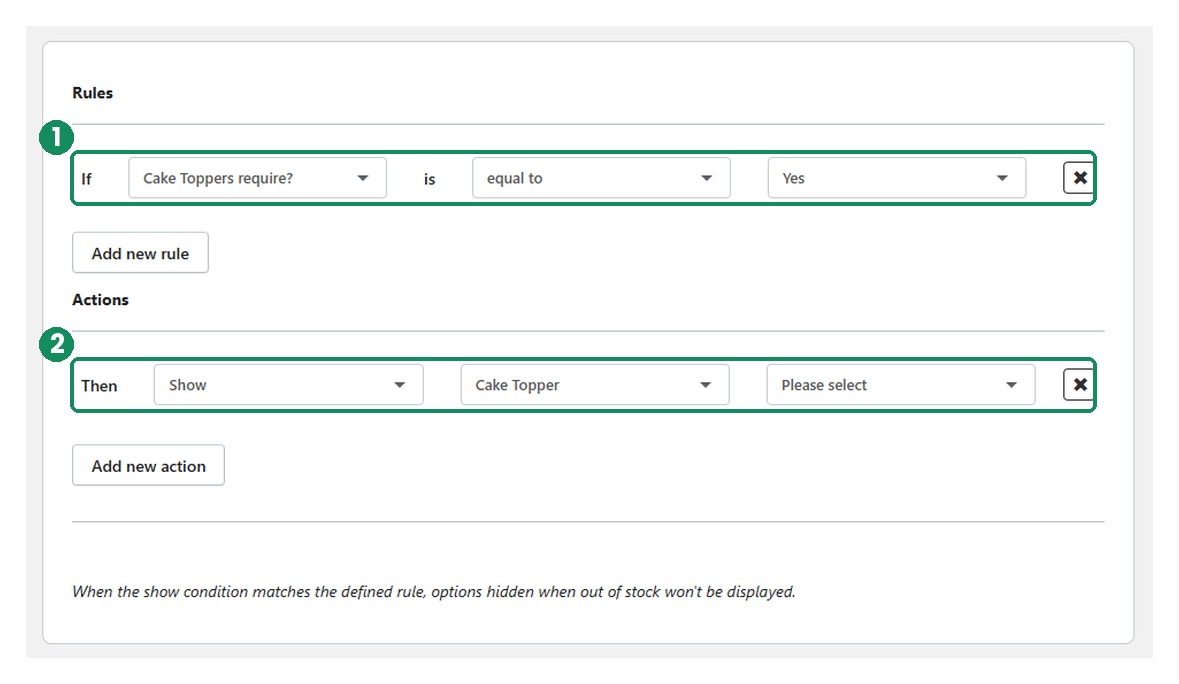
If Cake Toppers require? is equal to Yes
Then Show Cake Topper
A single option set can hold as many conditions as you need, and each one is listed back once it is saved.
Before you start
- Your option set needs at least two options — one to trigger the rule, and one to be shown.
- The trigger option needs at least two values. With only one value there is nothing for the condition to react to, so the rule can never change state.
- Both options must already exist in the set. Add them in Step 1 · Options first.
Add a condition
Step 1 — Open the option set
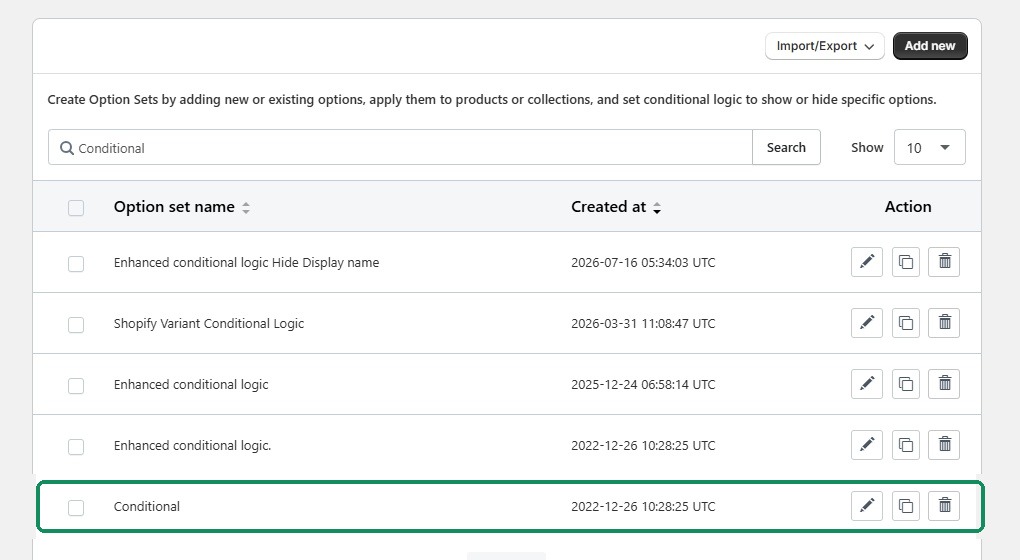
Go to Option sets and click the pencil on the set you want to add rules to. If you have a lot of sets, type the name into the search box and click Search. The example set here is called Conditional.
Step 2 — Go to Conditions and click Add new
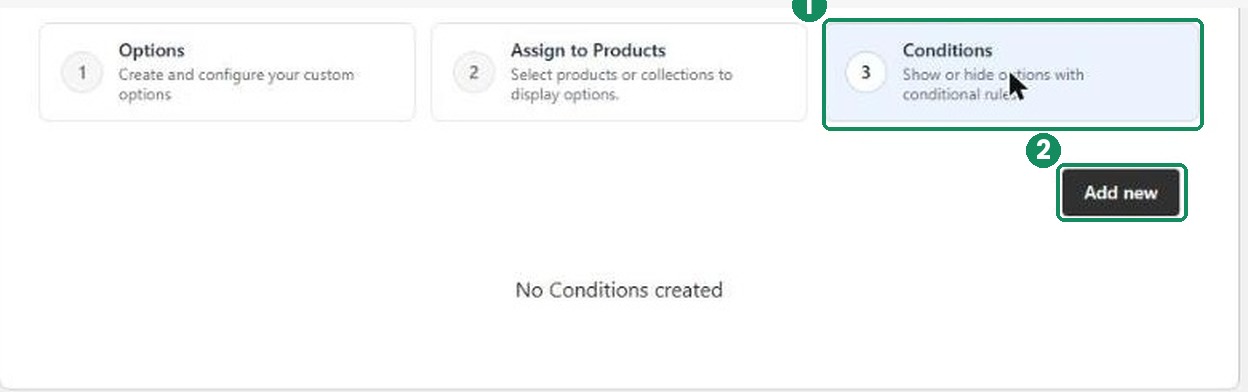
Inside the option set, the three numbered tabs are the stages of setup. Conditions is the third. A set with no rules yet shows No Conditions created.
Step 3 — Set the rule and the action
The builder opens with one empty rule and one empty action. Filled in, it reads exactly like the sentence you want.
- Under Rules, pick the option that triggers the condition in the If dropdown, then choose the value it has to match.
- Under Actions, leave the action as Show and pick the option you want to reveal.
Need more than one test or more than one outcome? Add new rule and Add new action extend the same condition.
Step 4 — Save and check the list
Saved conditions are listed back in plain English, so you can read the whole logic of a set at a glance. Use the icons on the right to edit, duplicate or delete a rule.

What the shopper sees
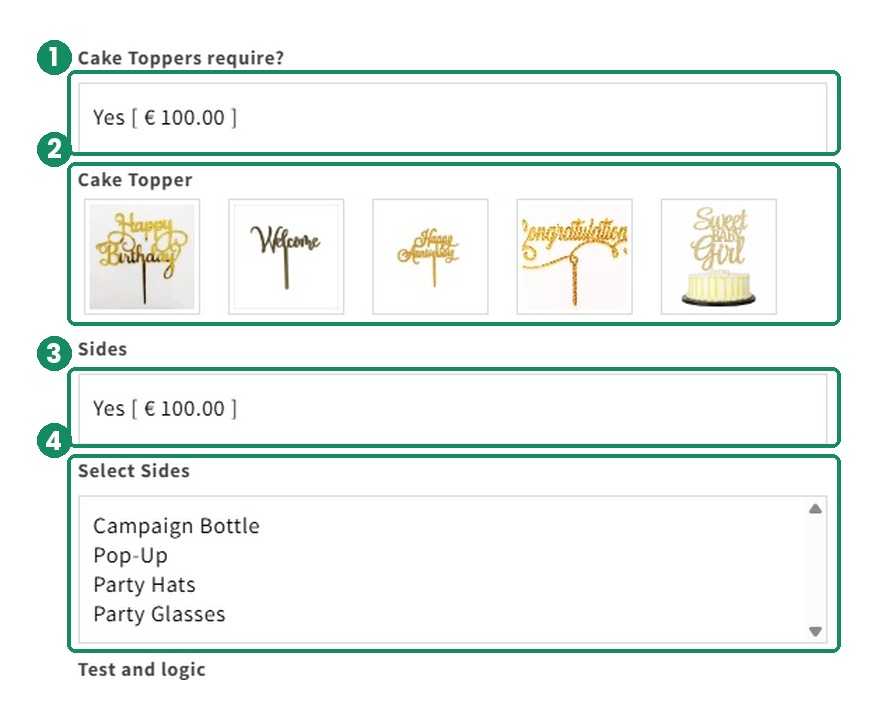
On this cake product, Cake Topper and Select Sides are both controlled by conditions. Until the shopper answers the question above them, neither exists on the page.
Before — Cake Toppers require? is unanswered, so the form goes straight on to Sides.
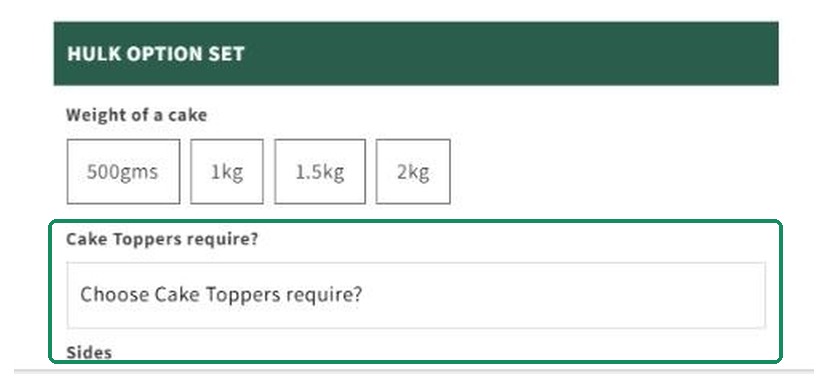
After — answering Yes to each question reveals the option beneath it.
Important: conditions built on a Shopify variant
- If a variant referenced by a condition is deleted, the condition stops working.
- Conditions do not update automatically when the variants behind them change.
- After you edit or remove variants, review every condition that referenced them and edit or delete it by hand.
Was this article helpful?
That’s Great!
Thank you for your feedback
Sorry! We couldn't be helpful
Thank you for your feedback
Feedback sent
We appreciate your effort and will try to fix the article