Note: This guide is only for Shopify Online Store 1.0 themes.
Before making any changes, we strongly recommend duplicating your theme to avoid conflicts.
Like most Shopify apps, Advanced Wishlist supports automatic theme integration for many themes. However, for Online Store 1.0 themes, some manual code integration may still be required.
Before You Start
Please make sure:
- The Advanced Wishlist app is installed
- You are editing a duplicate/staging theme
- Your theme is an Online Store 1.0 theme
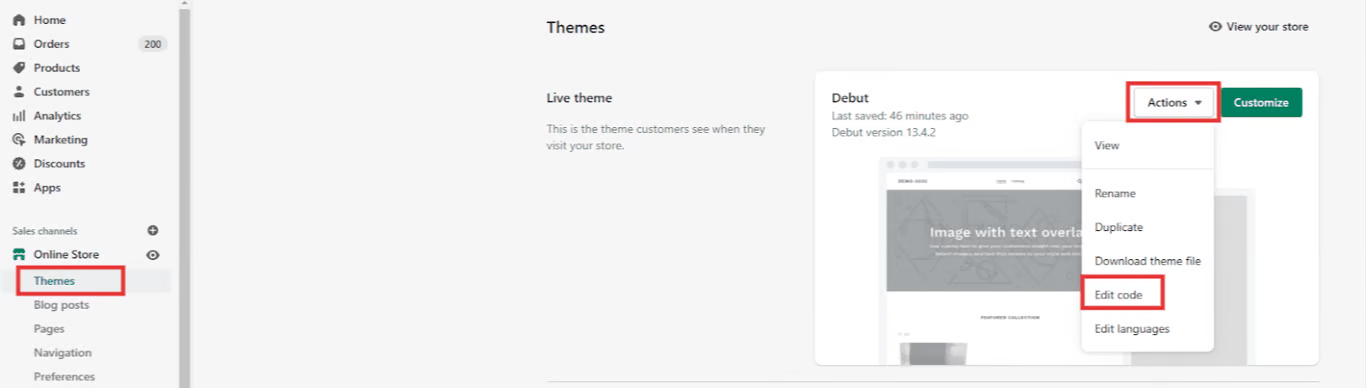
To access your theme files:
- Go to Shopify Admin
- Navigate to Online Store → Themes
- Click Actions → Edit code
Access the Shopify store admin and navigate to Themes > Choose the theme > Actions > Edit Code
Product Pages
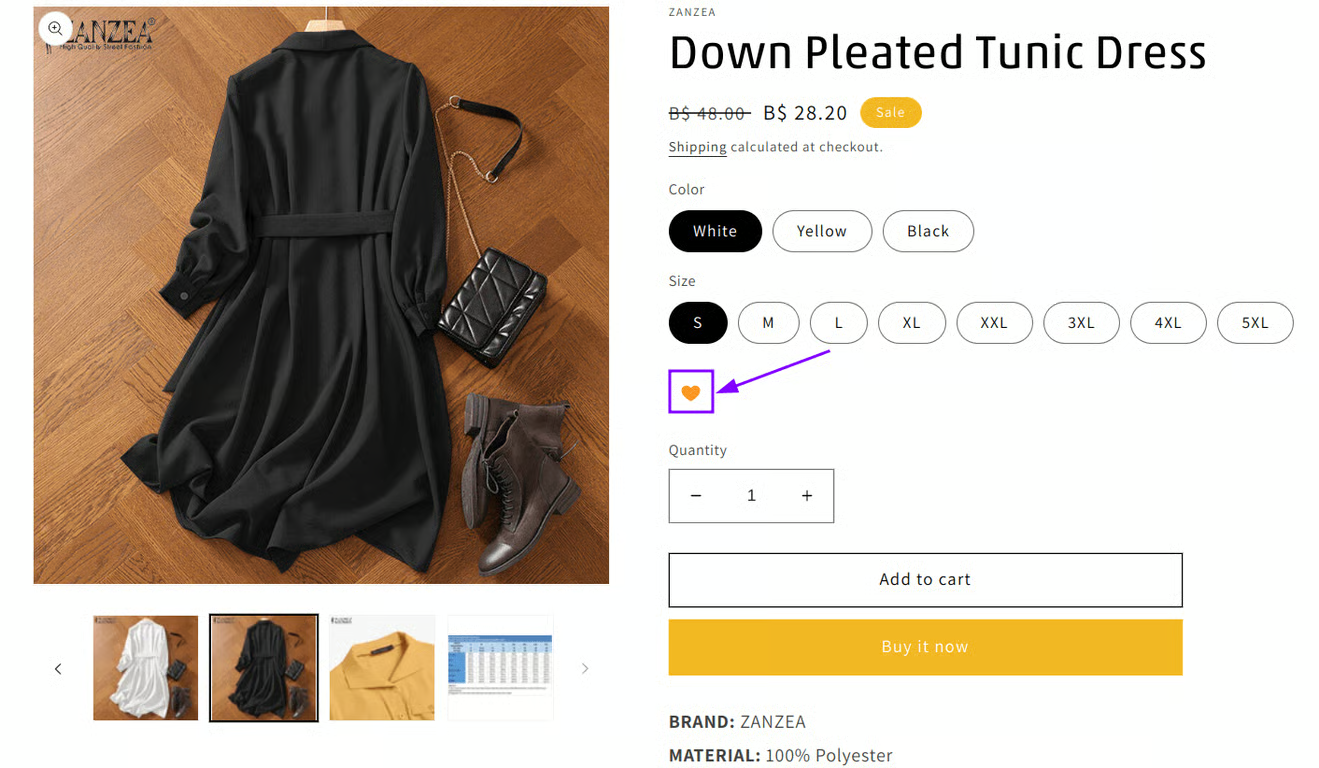
- In order to add the Snippet to display the Wishlist button on your Product pages below the “Add to Cart ” button.
- Open templates/product.liquid
- Locate the following line: <input type=“submit” class=“action-button submit” value=“{{ ‘products.product.add_to_cart’ | t }}“>
- Add the following code just after this line
{% render ‘hulkapps-wishlist-product-btn’ %}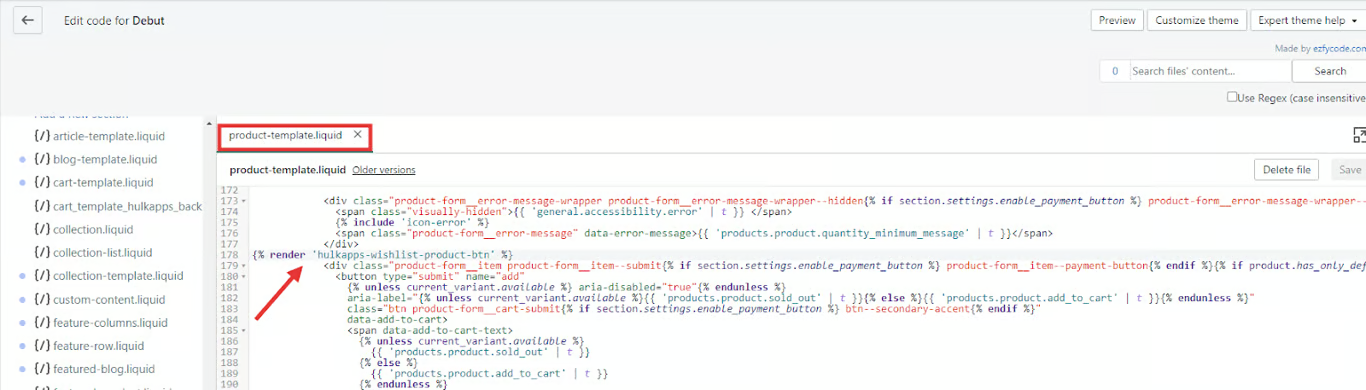
- Open Snippets
- Add a new snippet "hulkapps-wishlist-product-btn"
- Add the following code and press save.
{% assign button_layout = 'simple_button' %}
{% if shop.metafields.hulkapps_wishlist.hulkapps_wishlisfirt_general.button_layout != null %}
    {% assign button_layout = shop.metafields.hulkapps_wishlist.hulkapps_wishlist_general.button_layout %}
{% endif %}
<a href="#" class="icon-wishlist-heart-empty wishlist-btn grid-wishlist-btn heart-wishlist-animation" data-wishList data-added="false" data-proID="{{ product.id }}" data-varID="{{ product.selected_or_first_available_variant.id }}" data-button-layout="{{ button_layout }}" style="display:none">
    <div class="hulk_wl_icon-text" hulk-wl-custom-style data-count="{{ shop.metafields.hulkapps_wishlist.hulkapps_wishlist_general.public_wishlist_count }}">
        <div class="hulk_wl_icon">
            <i class="heart-hulk-animation"><i class="icon-wishlist-heart-empty"></i></i>
            <span>Add to wishlist</span>
        </div>
    </div>
    {% if button_layout == 'multi_color_button' and shop.metafields.hulkapps_wishlist.hulkapps_wishlist_buttonstyle.button_style == 'style_2' or shop.metafields.hulkapps_wishlist.hulkapps_wishlist_buttonstyle.button_style == 'style_4' %}
        <span class="count" hulk-wl-custom-style>0</span>
    {% else %}
        <span class="count" hulk-wl-custom-style>(0)</span>
    {% endif %}
</a>
Collection Pages
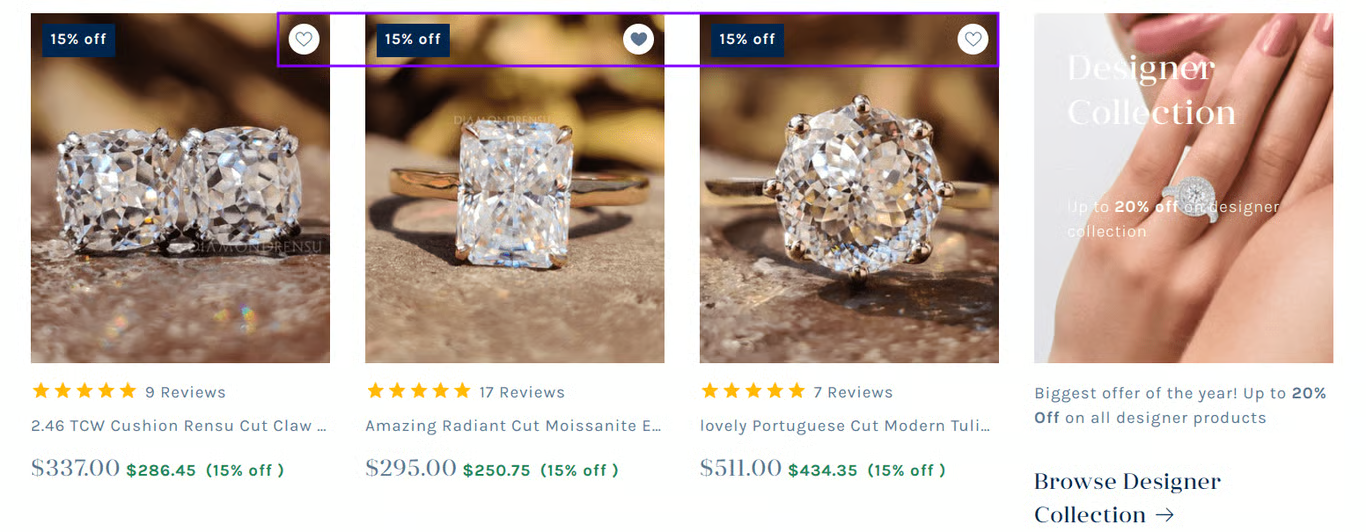
- For adding the code to the Collections page
- Open snippets/product-card-grid.liquid
- Locate the following line: <input class=“action-button submit” type=“submit” value=“{{ ‘products.product.add_to_cart’ | t }}” />
- Add the following code immediately after it
{% render ‘hulkapps-wishlist-collection-btn’, productId: product.id, variantId: product.selected_or_first_available_variant.id %}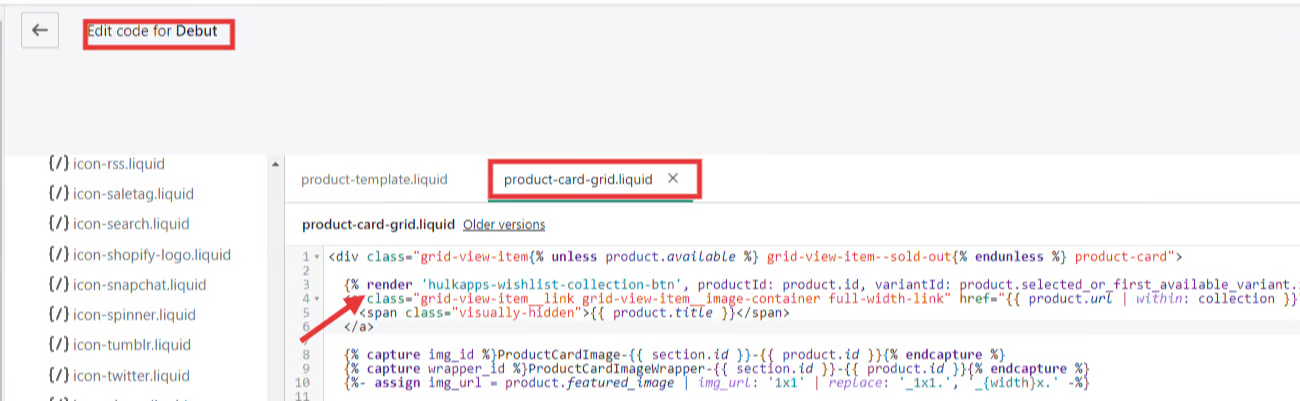
Header Navigation
- For adding the heart icon to the header, copy the below code and add it to the header.liquid file.
<a href=“/apps/advanced-wishlist” class=“site-header__icon icon-wishlist-heart-empty” style=“font-size: x-large;“></a>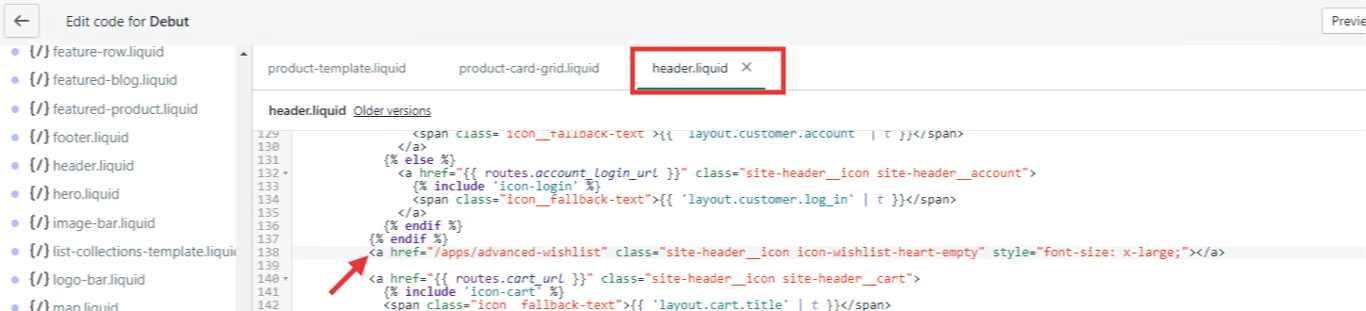
Move to Wishlist
Adding the “Move to Wishlist” button to the Cart page - copy the below code and add it to the cart-template.liquid file.
{% render ‘hulkapps-wishlist-cart-btn’, productId: item.product.id, variantId: item.variant.id, loopIndex: forloop.index %}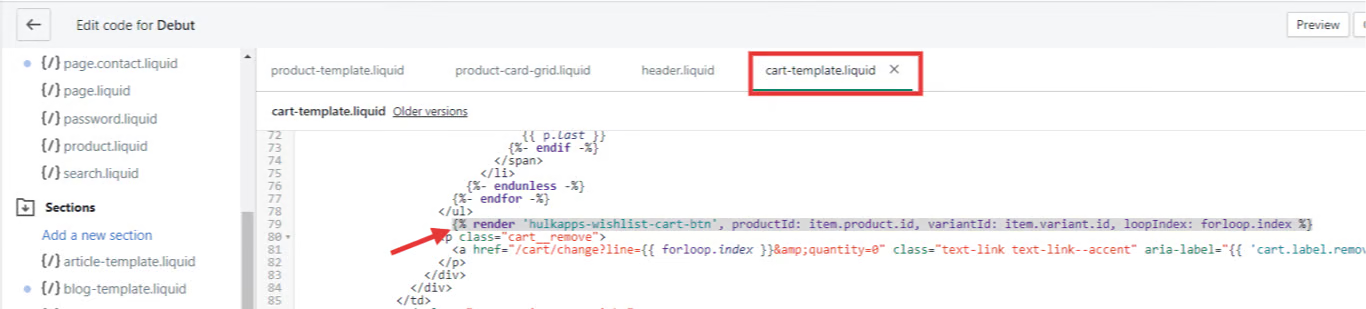
Was this article helpful?
That’s Great!
Thank you for your feedback
Sorry! We couldn't be helpful
Thank you for your feedback
Feedback sent
We appreciate your effort and will try to fix the article
