The Captcha Settings section allows you to protect your form from spam and automated submissions by enabling different types of captcha or spam-prevention techniques. Captcha ensures that submissions are made by real users and helps maintain the security and integrity of your form data.
How to Access Captcha Settings
To configure spam protection for any form:
Open Hulk Form Builder in your Shopify admin.
Select your desired form and click Edit Form.
Navigate to Settings → General → Form captcha.
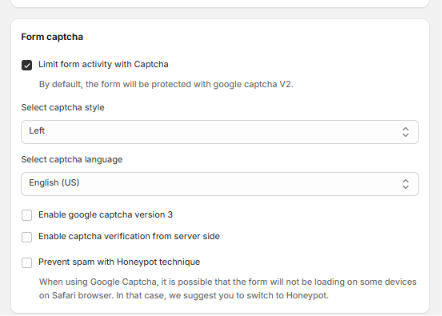
Available Options and Their Functions
Limit form activity with captcha
When enabled, this option activates Google reCAPTCHA on your form to prevent automated bots from submitting it.
By default, Google reCAPTCHA V2 is applied.
Select captcha style
Defines the alignment of the captcha element on your form (e.g., Left).
This setting allows you to visually align captcha with the rest of your form layout.
Select captcha language
Determines the display language of the captcha widget.
Example: English (US), but multiple other languages are supported.
Enable Google Captcha version 3
Switches from reCAPTCHA V2 (which shows a “I’m not a robot” checkbox) to reCAPTCHA V3, an invisible verification method.
reCAPTCHA V3 runs silently in the background and scores user behavior to detect bots without interrupting the user experience.
Enable captcha verification from the server side
Adds an additional layer of security by verifying captcha responses directly from your server.
Helps ensure that submissions come from legitimate interactions rather than external scripts.
Spam prevention using honeypot technique
Enables the Honeypot method — a hidden field that genuine users won’t see, but bots will typically fill out, triggering spam detection.
Recommended as an alternative or backup when Google reCAPTCHA may cause issues on specific browsers.
Browser Compatibility Note
When using Google Captcha, some forms might not load properly on Safari browsers due to certain security or cookie restrictions.
If you encounter this issue, it’s recommended to switch to the Honeypot technique for reliable spam protection.
Tip
For the best balance of user experience and security:
Use reCAPTCHA V3 for smooth, invisible protection.
Use Honeypot if your audience primarily uses Safari or if you want a lightweight, privacy-friendly solution.
Was this article helpful?
That’s Great!
Thank you for your feedback
Sorry! We couldn't be helpful
Thank you for your feedback
Feedback sent
We appreciate your effort and will try to fix the article